If you only manage a single social media account, there is not much to think about.
But once one account turns into five, ten, or even dozens, the question of how to stay logged into multiple accounts at the same time quickly becomes a practical challenge.
I went through the same progression while managing multiple social media accounts myself.
At first, I used the simplest approach: multiple Chrome profiles.
Later, because I needed to work with mobile apps such as TikTok and Instagram, I started experimenting with Android emulators.
As the number of accounts grew, I realized that the real challenge was not simply running multiple instances. It was keeping account environments, login sessions, network configurations, and day-to-day management properly separated.
That was when I started looking into fingerprint browsers and cloud phones.
So if you are working in social media management, cross-border e-commerce, advertising, or multi-account social media operations, and you need to manage multiple accounts, this guide should give you some useful perspective.
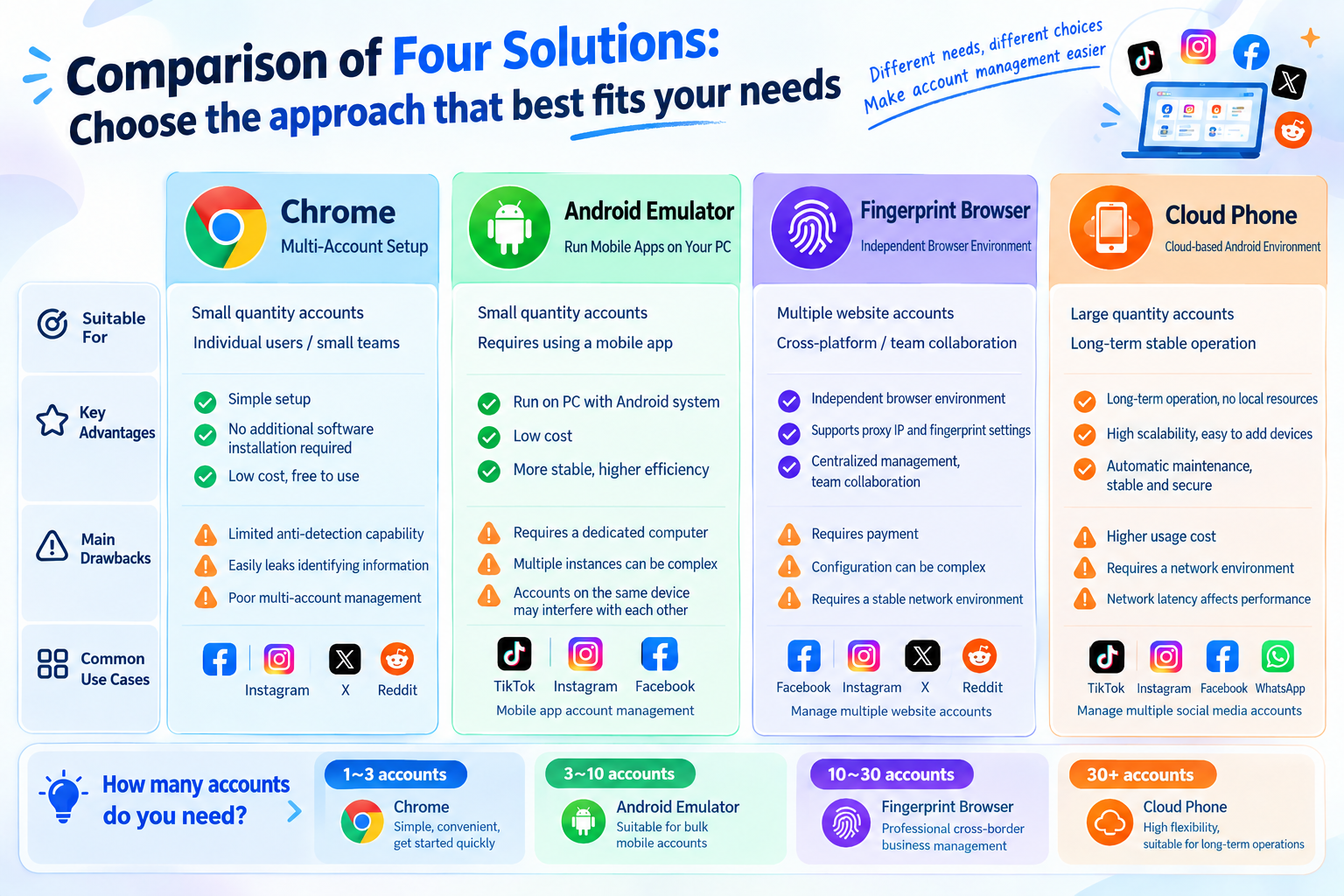
From a practical user perspective, I will compare four common approaches to managing multiple social media accounts:
Chrome profiles, Android emulators, fingerprint browsers, and cloud phones.
The goal is not to tell you which option is the “best,” but to help you understand which one fits your current account volume and workflow.
1. Why Does Social Media Operations Require Multi-Account Management?
For many people, the need for multi-account management does not start with anything particularly complicated.
It may simply mean managing several Facebook accounts at the same time.
Or a brand may need to manage accounts across Facebook, Instagram, TikTok, X, and other platforms.
Some cross-border e-commerce sellers also manage multiple social media accounts based on different brands, markets, or business lines.
When there are only a few accounts, the simplest approach is to log out and then log back in to another account.
But as the number of accounts increases, this quickly becomes cumbersome.
You have to log out of one account before logging into another;
Cookies and login sessions can easily get mixed up between accounts;
With too many browser windows open, it becomes easy to operate the wrong account;
It becomes difficult to keep network configurations clearly separated;
And when multiple people need to collaborate, handing accounts over becomes much harder.
The real challenge in multi-account social media management is not opening more windows. It is creating clear, separate, and maintainable working environments for different accounts.
Today, four common approaches are widely used to address this need.
2. Chrome Profiles: The Simplest and Lowest-Cost Starting Point
If I were starting with the simplest option, I would begin with Chrome.
It requires almost no additional learning.
Chrome natively supports multiple user profiles.
I can create multiple Chrome Profiles and use each one to log into a different social media account.
Each profile can maintain its own bookmarks, browsing history, passwords, cookies, extensions, and website login sessions.
This means I do not have to log out of Facebook every time I want to use Instagram.
I can simply open the corresponding Chrome profile and continue working.
In practice, this approach is quite convenient when you only have two or three accounts.
It is also extremely inexpensive.
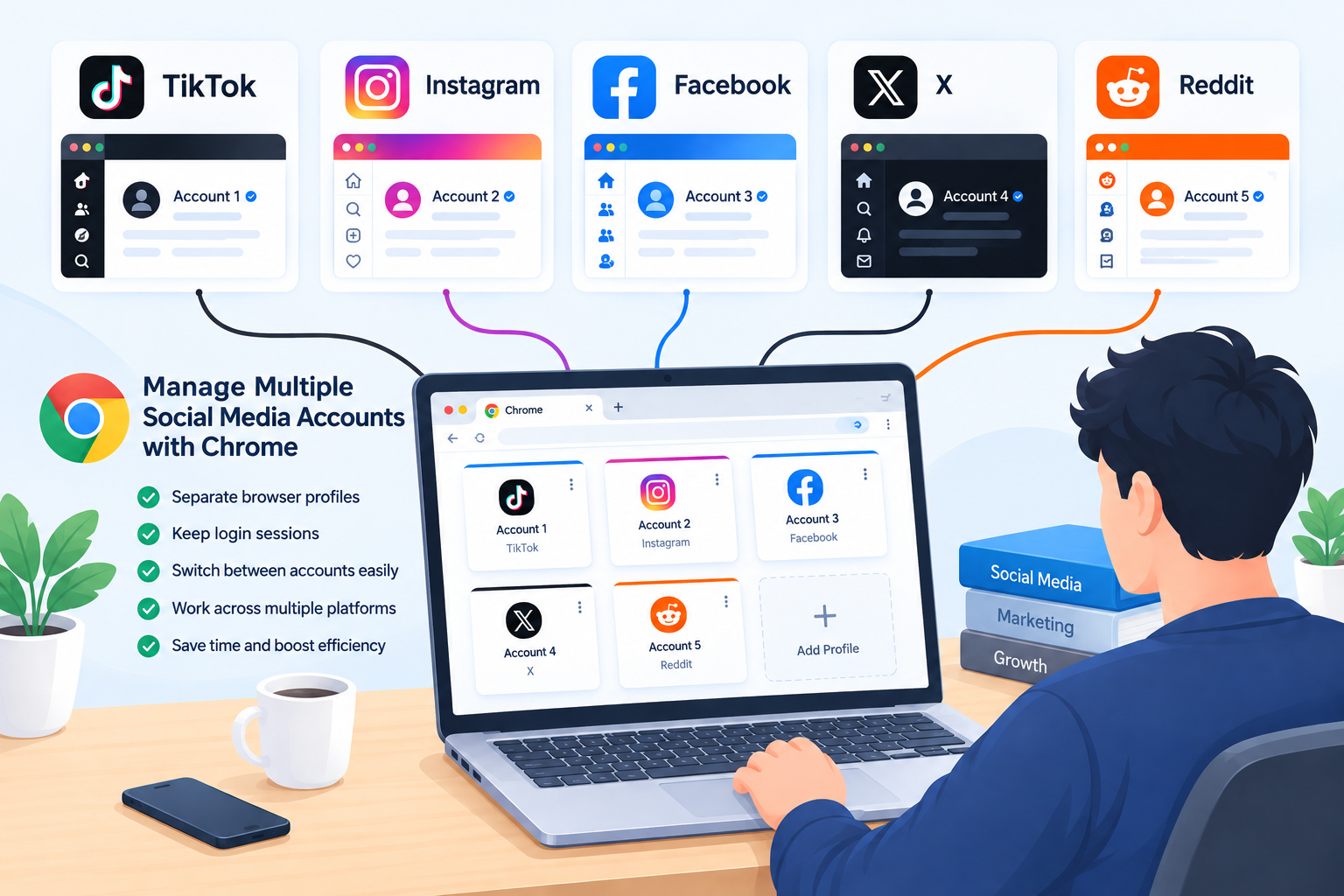
When Is Using Multiple Chrome Profiles a Good Fit?
· Managing 2–3 social media accounts;
· Primarily using web-based platforms;
· Occasionally switching between accounts;
· Not requiring sophisticated team management;
then multiple Chrome profiles may already be sufficient.
There is no need to start with a complex tool right away.
What Are the Limitations of Multiple Chrome Profiles?
But once the number of accounts increased, I quickly ran into its limitations.
Multiple Chrome profiles separate login sessions, but that does not mean each account has a completely independent device environment.
All of these browser profiles still run on the same computer.
They use the same operating system and underlying hardware, and remain part of the same local computer environment.
As the number of accounts grows, I also have to keep track of:
Which window belongs to which account?
Which network configuration should each account use?
Which account belongs to which project?
Which browser window must not be mixed up?
With only a few accounts, these issues are easy to overlook.
Once you reach a dozen or several dozen accounts, things can become noticeably harder to manage.
And accidentally switching to the wrong window can lead to accounts being mixed up.
Multiple Chrome profiles work well for a small number of accounts, but are less suited to long-term, large-scale multi-account social media operations.
3. Android Emulators: Running Multiple Mobile Apps on a Computer
When I started relying more heavily on mobile apps such as TikTok and Instagram, Chrome profiles were no longer enough.
That was when Android emulators entered the picture.
The basic idea is easy to understand:
Create multiple virtual Android environments on one computer.
I can then install TikTok, Instagram, Facebook, Telegram, and other apps in separate emulator instances.
Compared with buying a dozen physical phones, the biggest advantage of Android emulators is cost.
They are also convenient to control with a keyboard and mouse.
Copying text, organizing content, and uploading media is generally easier than handling several physical phones at once.
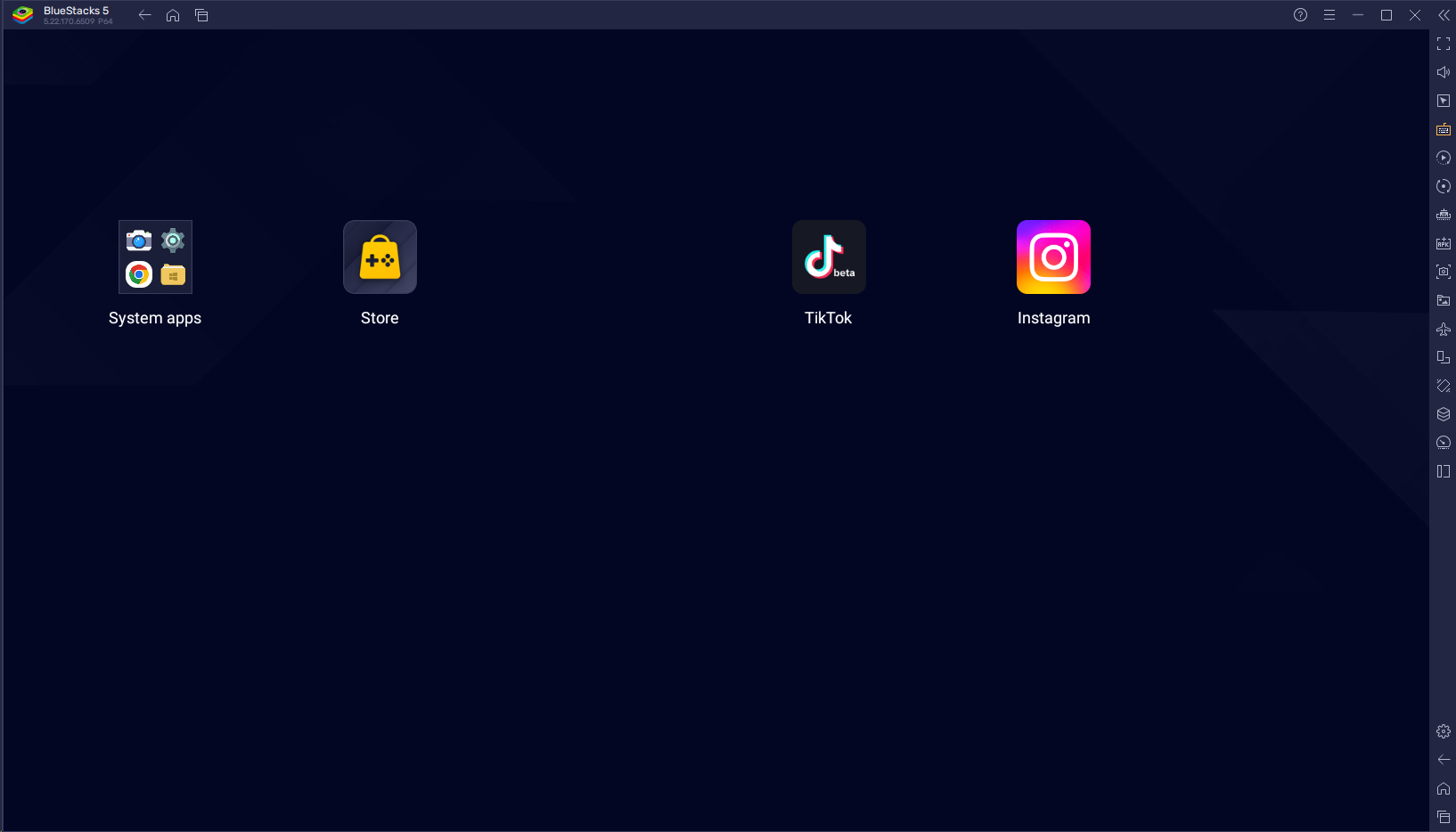
The Biggest Advantages of Android Emulators
When the number of accounts is relatively small, I still find Android emulators quite practical.
Occasional use of mobile apps;
You do not want to buy multiple physical phones;
You already have a reasonably powerful computer.
In this situation, starting with an emulator is a reasonable way to test the workflow.
However, Emulators Can Be Resource-Intensive
This is something worth considering from the beginning.
Each additional emulator instance consumes more CPU, memory, GPU, and storage resources.
Running two instances may not feel like a problem.
But running a dozen or more instances at the same time is a different story.
Your computer may start to experience:
Slower, less responsive operation;
Poor performance in other applications.
I gradually came to realize that:
Android emulators solve the problem of running mobile apps on a computer, but they do not fully solve the broader challenge of multi-account management.
Once the number of accounts grows, local hardware can become the limiting factor.
If remote collaboration is also required, emulator management can become even more complicated.
4. Fingerprint Browsers: When Environment Management Becomes the Priority
So far, we have covered Chrome profiles and Android emulators.
If you are managing only a few accounts, both options can solve many practical problems.
For me, multi-account management only started to feel genuinely complicated as the number of accounts continued to grow.
At that point, the real questions were no longer about opening several accounts at once. They were:
How can browser environments be separated between accounts?
How should cookies and login sessions be stored?
How should network settings be configured for different accounts?
How can dozens of accounts be managed consistently?
If I simply opened dozens of Chrome windows, I would still have to handle most of these issues manually.
That was when I started seriously exploring fingerprint browsers.
The simplest way I understand a fingerprint browser is:
It does more than simply open multiple browser instances. It lets me create a relatively independent browser workspace for each account and maintain that environment over time.
Each environment can manage its own account data and browser configuration separately.
This is fundamentally different from simply opening several Chrome tabs.
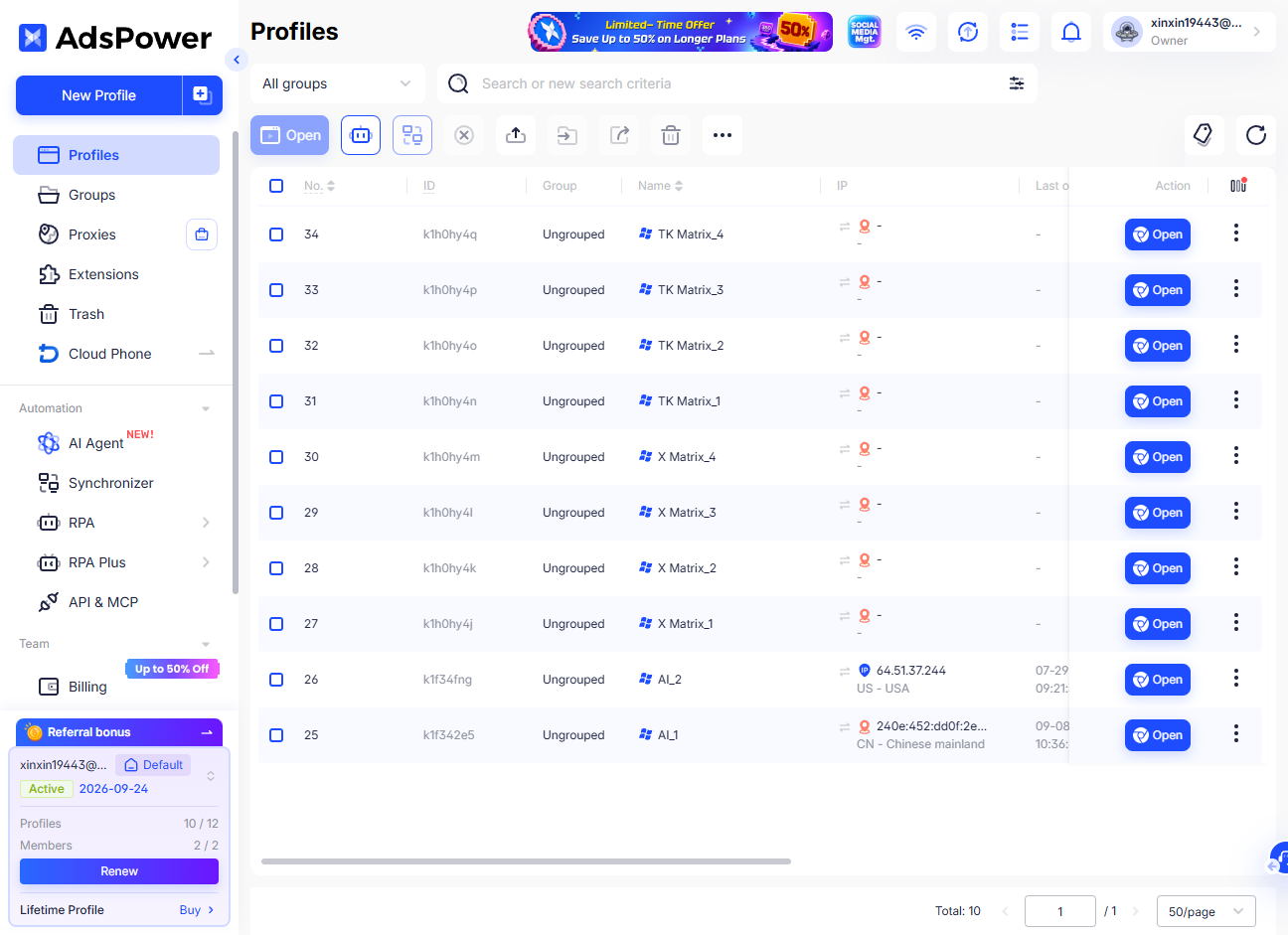
5. What Does AdsPower Actually Solve for Multi-Account Management?
After using this type of tool, one of the biggest differences I noticed was:
A professional fingerprint browser is primarily about environment management, not just running multiple accounts.
With AdsPower, for example, I can manage accounts using a one-account-per-browser-environment structure and configure parameters such as proxy IP, language, time zone, and resolution for different workflows.
For me, the biggest benefit is that I no longer have to put every account into the same browser environment.
I can treat each account as a separate working unit.
When I need to work on Account A, I open Environment A;
when I need Account B, I open Environment B.
I no longer have to stare at a collection of Chrome windows and keep asking:
“Which account does this window belong to?”
“Am I logged into the wrong account?”
This may look like a simple change in workflow, but the efficiency difference becomes significant as the number of accounts grows.
1. Network Layer: Configure a Separate Proxy Environment for Each Account
Let us start with what I consider one of the most important layers:
When managing social media accounts, I generally do not want every account to rely entirely on the same network exit.
Especially as the account count grows, relying entirely on manual records and switching makes mistakes much more likely.
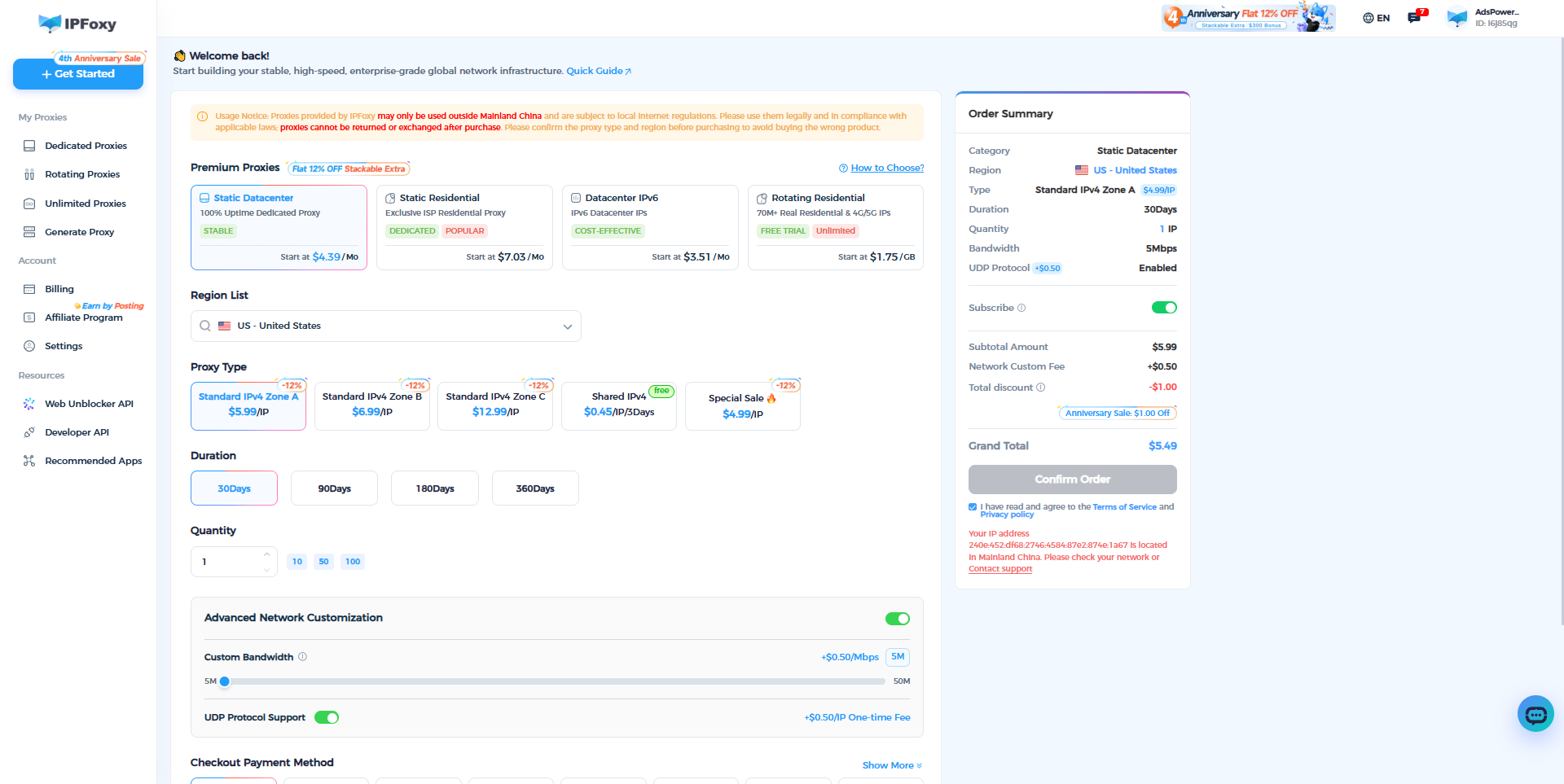
AdsPower supports common proxy protocols such as HTTP, HTTPS, and SOCKS5.
I can add proxies I already have, or configure and purchase proxies directly through AdsPower.
More importantly, network settings can be configured for individual environments, creating a clear management relationship between each account and its corresponding IP.
Account A → Environment A → U.S. IP
Account B → Environment B → U.K. IP
Account C → Environment C → German IP
From a day-to-day management perspective, this creates a clear relationship between the account, browser environment, and network configuration.
I no longer have to stop before every login and wonder:
“Which proxy should this account use today?”
Of course, I would not interpret a fixed IP as a guarantee that a platform will never verify or restrict an account.
What it actually solves for me is:
Network environments can be managed systematically instead of relying entirely on memory.
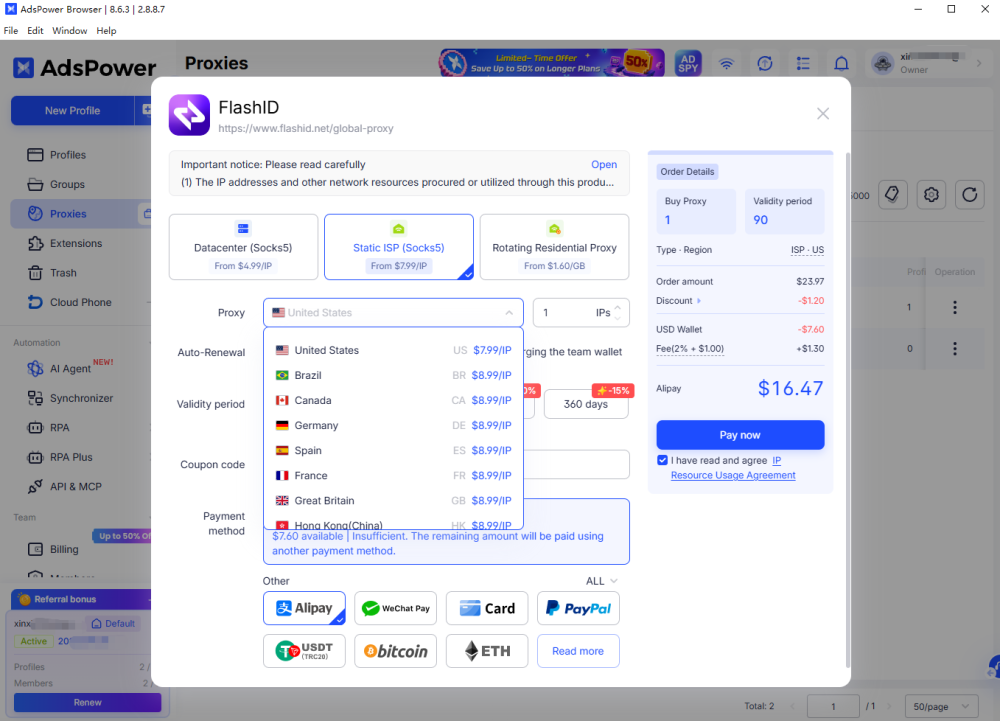
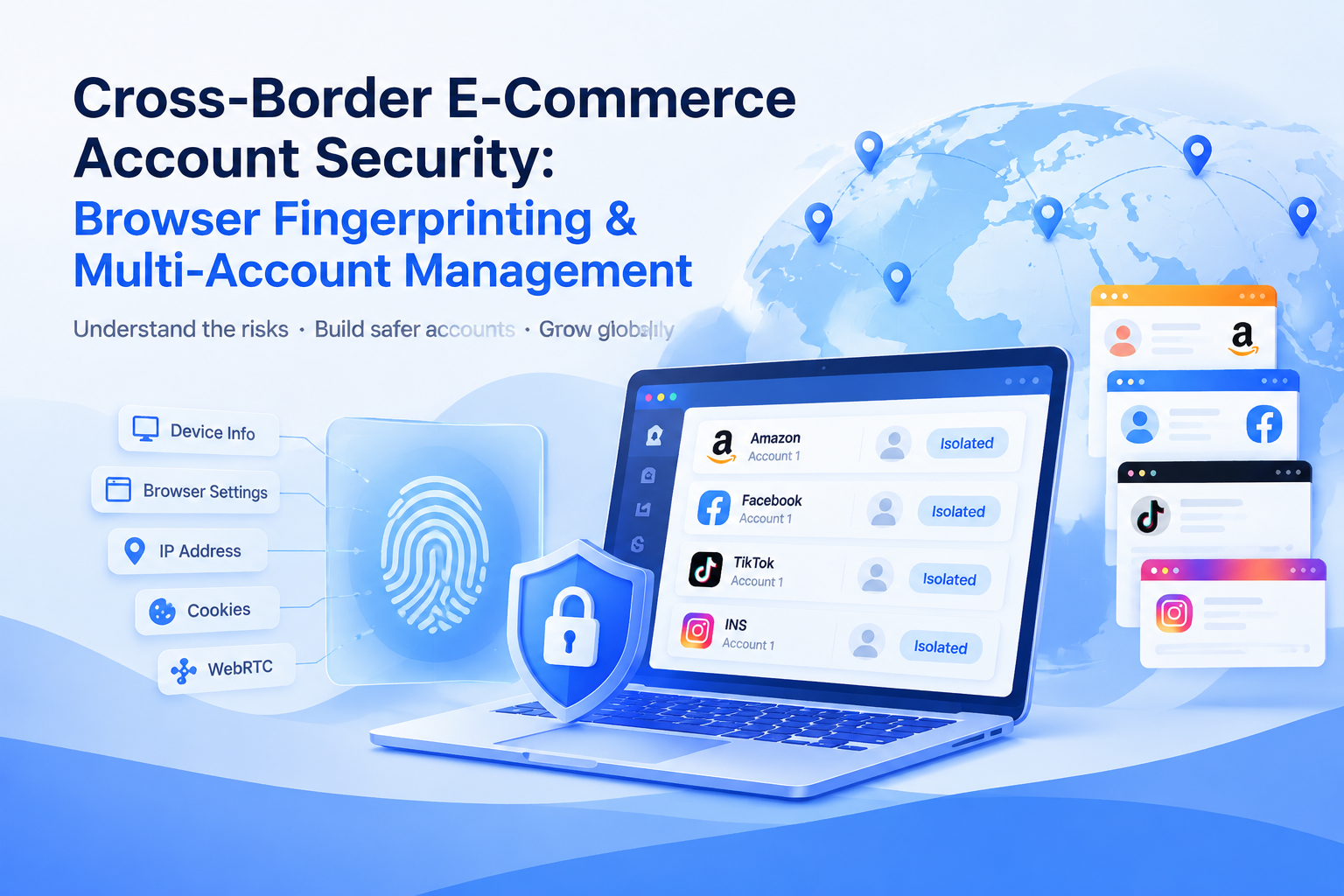
2. Fingerprint Layer: Further Differentiate Browser Environments
This is one of the key differences I see between AdsPower and standard Chrome profiles.
A standard Chrome Profile mainly handles:
separate cookies, browsing history, passwords, and browsing data for different accounts.
A fingerprint browser goes a step further by considering:
what characteristics the browser environment itself presents.
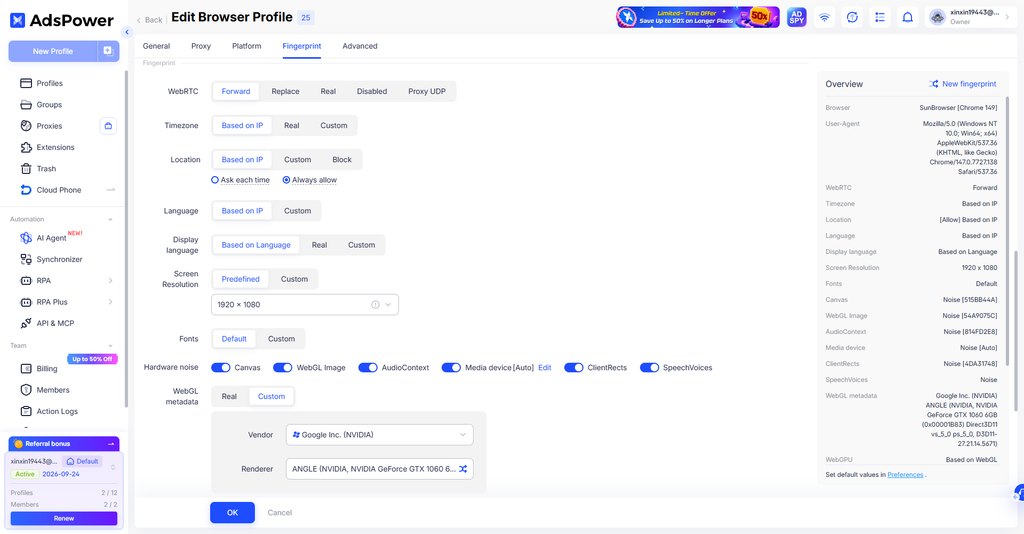
AdsPower can customize basic parameters such as User-Agent, operating system, browser version, language, time zone, screen resolution, and fonts.
It also provides configuration related to more advanced browser fingerprinting signals, including Canvas, WebGL, WebRTC, and Audio Context.
This is particularly important to me.
When I used a standard browser, the windows were separate, but the underlying browser environment was still on the same computer.
Now I can create separate browser environments for different accounts and configure them according to actual requirements.
One account can use a Windows environment;
another environment can use different browser parameters;
and each environment can be paired with its corresponding language, time zone, resolution, and network settings.
The goal is not simply to randomize every parameter.
giving each account a clear, stable, and sustainable working environment.
Signals such as Canvas, WebGL, WebRTC, and Audio Context are essentially related to managing data that can contribute to a browser environment's characteristics.
Chrome profiles separate windows, while AdsPower goes a step further by separating environments.
3. Account Layer: Keep Cookies, Login Sessions, and Account Data Organized
Next comes a layer I use frequently in day-to-day operations:
In the past, changing computers, browsers, or working environments often meant logging in again.
With only a few accounts, this was manageable.
But with many accounts, repeatedly entering usernames, passwords, and verification codes becomes extremely time-consuming.
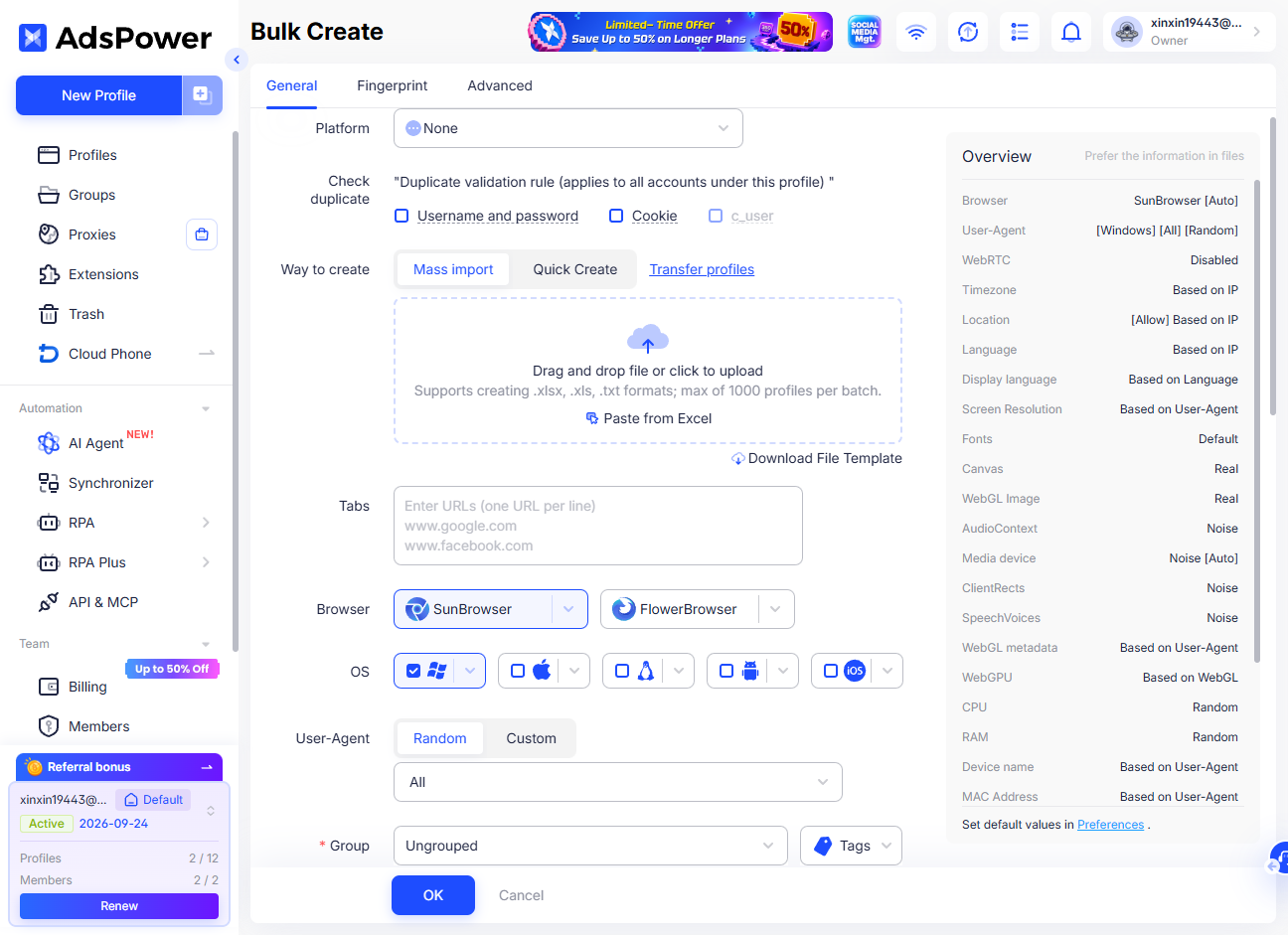
AdsPower supports batch importing account credentials, cookies, two-factor authentication keys, and other information.
Once configured, opening the corresponding environment lets me continue using the account's existing login session, reducing a large amount of repetitive input.
For me, the real value of this feature is not simply the words “automatic login.”
Account data can finally be associated with its corresponding environment.
Account A → Environment A → Cookie A → Login Session A
Account B → Environment B → Cookie B → Login Session B
From then on, I simply open the corresponding environment when I need to work on an account.
There is no need to start from scratch.
I also do not have to repeatedly log out and log back in.
More importantly, each time I open an environment, I can continue using its existing cookies, login session, and browser settings.This is also the logic used in the original description.
For people managing a large number of accounts, this can significantly reduce repetitive day-to-day work.
6. Why Does a One-Account-One-Environment Setup Work Better for Long-Term Operations?
Here is one very practical observation from my experience.
When I managed multiple accounts before, I always felt like:
“I had to remember all these accounts.”
After using separate environments, my mindset gradually changed to:
“I need to manage these environments.”
The two ideas may sound similar, but they make a significant difference in practice.
Each environment can have its own:
Once the environments are set up, most ongoing operations can be organized around them.
This is especially useful for long-term operations.
I do not need to rebuild the setup every time.
I also do not have to worry that switching browsers from one day to the next will disrupt existing login sessions and configurations.
In terms of workflow, I think of it more as:
creating a long-term digital workspace for each account.
Once the account count reaches dozens, AdsPower's team management features become much more relevant.
If I am managing only three accounts by myself, the features described above are probably enough.
But once the number reaches dozens or even hundreds, separate browser environments alone are not enough.
At that point, the bigger question becomes:
How do I manage all these environments?
For example, I might simultaneously manage:
Facebook, Instagram, TikTok, and X accounts across different brands, regions, clients, and operators.
If everything is piled together, things can become chaotic regardless of how powerful the tool is.
That is why AdsPower also provides team-oriented management features, including groups and tags, team permissions, operation logs, and automation capabilities:
1. Groups and Tags: Organize Your Account Assets First
This feature looks simple, but I find it very useful in practice.
AdsPower lets you group and label browser environments by platform, business line, operator, and other dimensions.
Or I can organize them by operator.
When there are dozens or hundreds of environments, I do not have to search through a huge list of accounts manually.
Groups and tags make it much easier to locate the right environment quickly.
From a management perspective, this is no longer just a multi-instance feature. It is closer to an account asset management system.
2. Team Permissions: Not Everyone Needs Access to Every Account
This issue is less noticeable when you work alone.
But once a team gets involved, permission control becomes important.
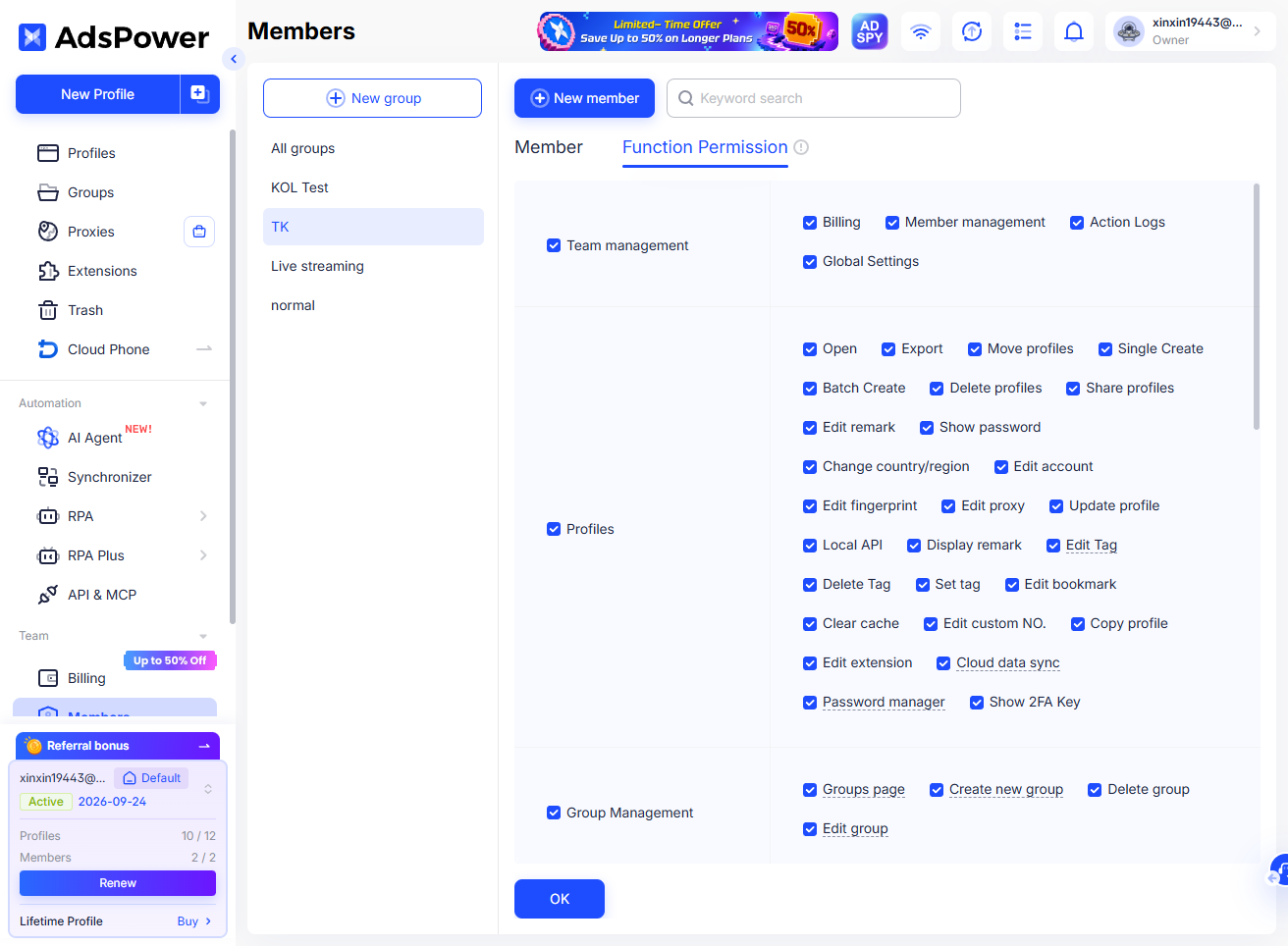
AdsPower supports sub-accounts and lets you assign different permissions, such as view-only, operational, or management access.
Some sensitive account information can also be hidden.
This matches the way many teams actually work.
Regular operators can focus on operating accounts;
supervisors can manage environments;
and administrators can handle overall configuration.
This means I do not need to send every account password, cookie, or other sensitive information directly into a group chat.
Especially when team membership changes, a structured permission system can be much safer than having everyone share the same account password.
The original article also highlights reducing the risk of account information exposure when team members change as one benefit of team permissions.
3. Operation Logs: Know Who Made a Change
Team collaboration creates another question:
What happens when something goes wrong?
For example, an environment suddenly has a configuration change.
Or an account shows an unexpected operation.
If everyone shares the same account information, it can be difficult to determine who made the change.
AdsPower provides operation logs that can record logins, actions, and changes made to different environments.
When something unusual happens, the activity can be traced back to the relevant user.
This may be less important for individual users.
For teams, however, it can be very useful.
Once accounts become team assets rather than personal assets:
traceability becomes part of effective management.
4. RPA and API: When Repetitive Tasks Start Taking Too Much Time
As the account count increased further, I noticed another issue:
Sometimes the biggest time drain is not logging in, but repeating the same actions.
Opening multiple environments;
closing multiple environments;
running standardized workflows.
Each step is simple on its own.
But repeating those steps across dozens of accounts can consume a significant amount of time.
AdsPower provides built-in RPA for repetitive tasks such as opening and closing multiple environments, updating fingerprints, and checking proxies. It also provides a local API for connecting with internally developed tools.
This means that if my team already has internal systems or automation scripts, not everything has to be done manually.
Instead, AdsPower's environment management capabilities can potentially be integrated into the existing workflow.
Basic users may not need these features yet.
But for a team that manages multiple accounts over the long term, this is an important distinction between a simple tool and something that can gradually become part of the team's operating infrastructure.
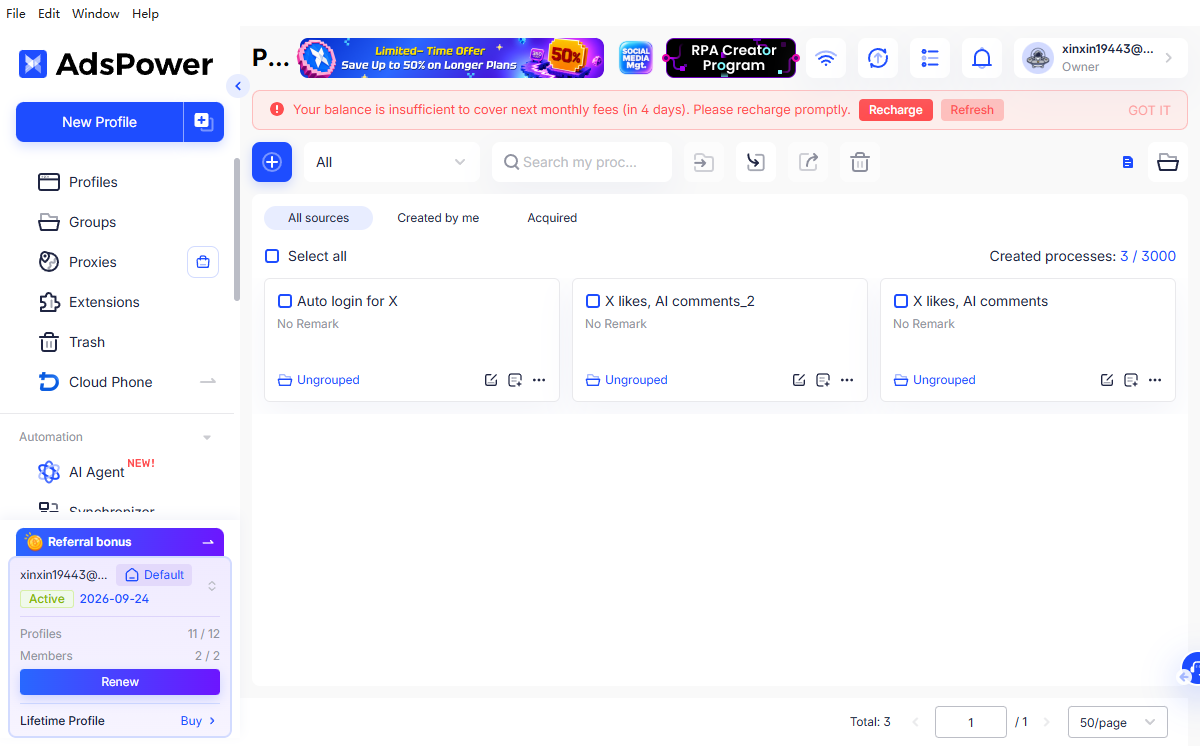
5. AI Agent: Let AI Handle Some Multi-Account Tasks
In addition to environment, account, and team management, another feature I find interesting in AdsPower is its AI Agent.
When managing multiple accounts, I often encounter repetitive tasks.
For example, creating a new browser environment, opening a specific environment, entering a platform, and then following a standard process.
None of these tasks is particularly complicated, but they become highly repetitive when the number of accounts grows.
Previously, I might have had to click through them one by one.
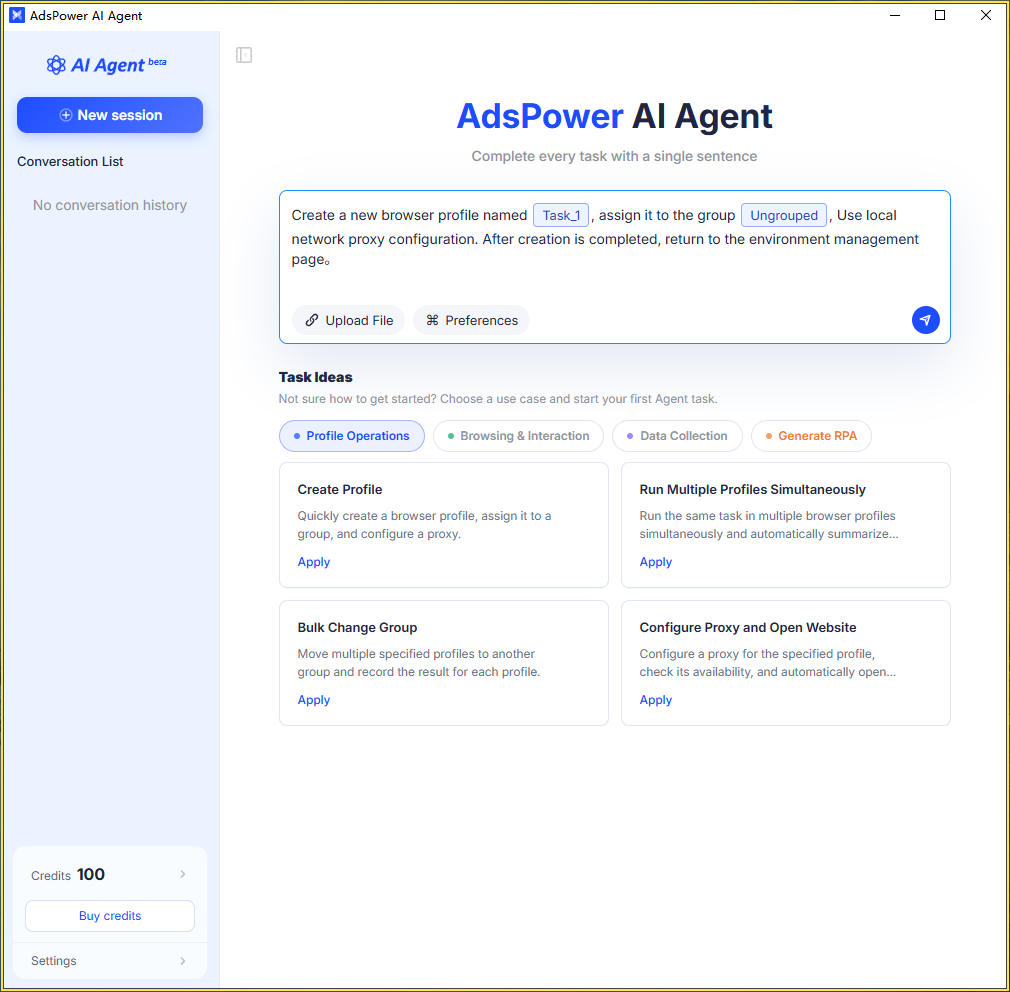
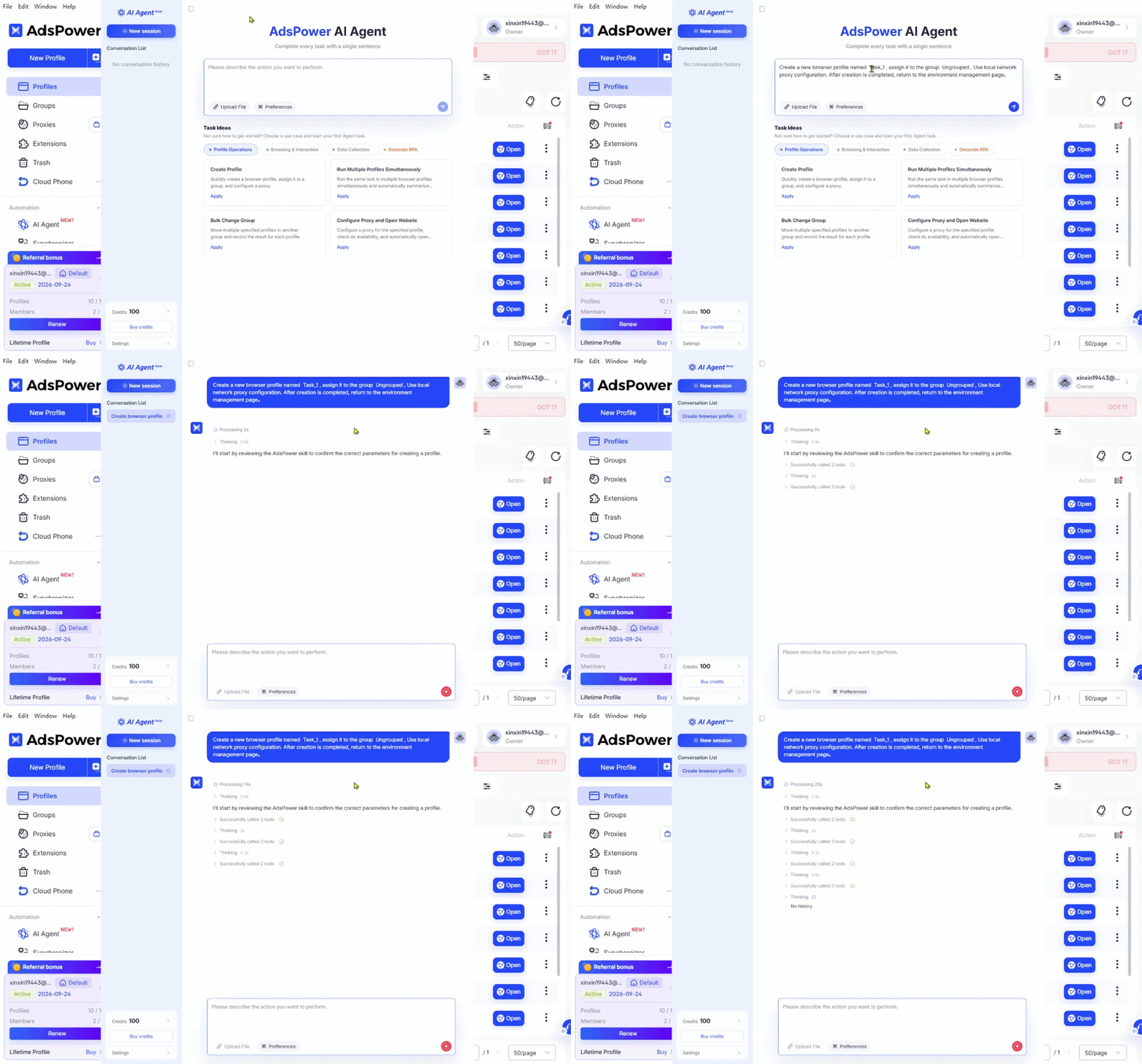
With an AI Agent, I can describe what I want in natural language and have it assist with the corresponding actions.
For example, I can simply say:
“Create a U.S. Windows environment for me and use my existing U.S. IP.”
In this situation, I do not have to open each settings page and fill everything in manually. The AI Agent can assist with the environment configuration based on the instruction.
“Open Environment A and publish a post on Facebook.”
It can enter the corresponding environment and proceed with the specified workflow.
For me, the biggest change is not simply having another AI feature. It is that workflows that once required repeated mouse and keyboard actions can gradually become tasks described in a sentence and assisted by AI.
The process is not necessarily an opaque black box. Each step can be visible, allowing me to see how far the task has progressed and review the final result.
If I am only managing two or three accounts, the benefit may not be particularly noticeable.
But when there are dozens of accounts and I repeatedly need to create environments, open accounts, and run standard actions, the value of an AI Agent becomes much more apparent.
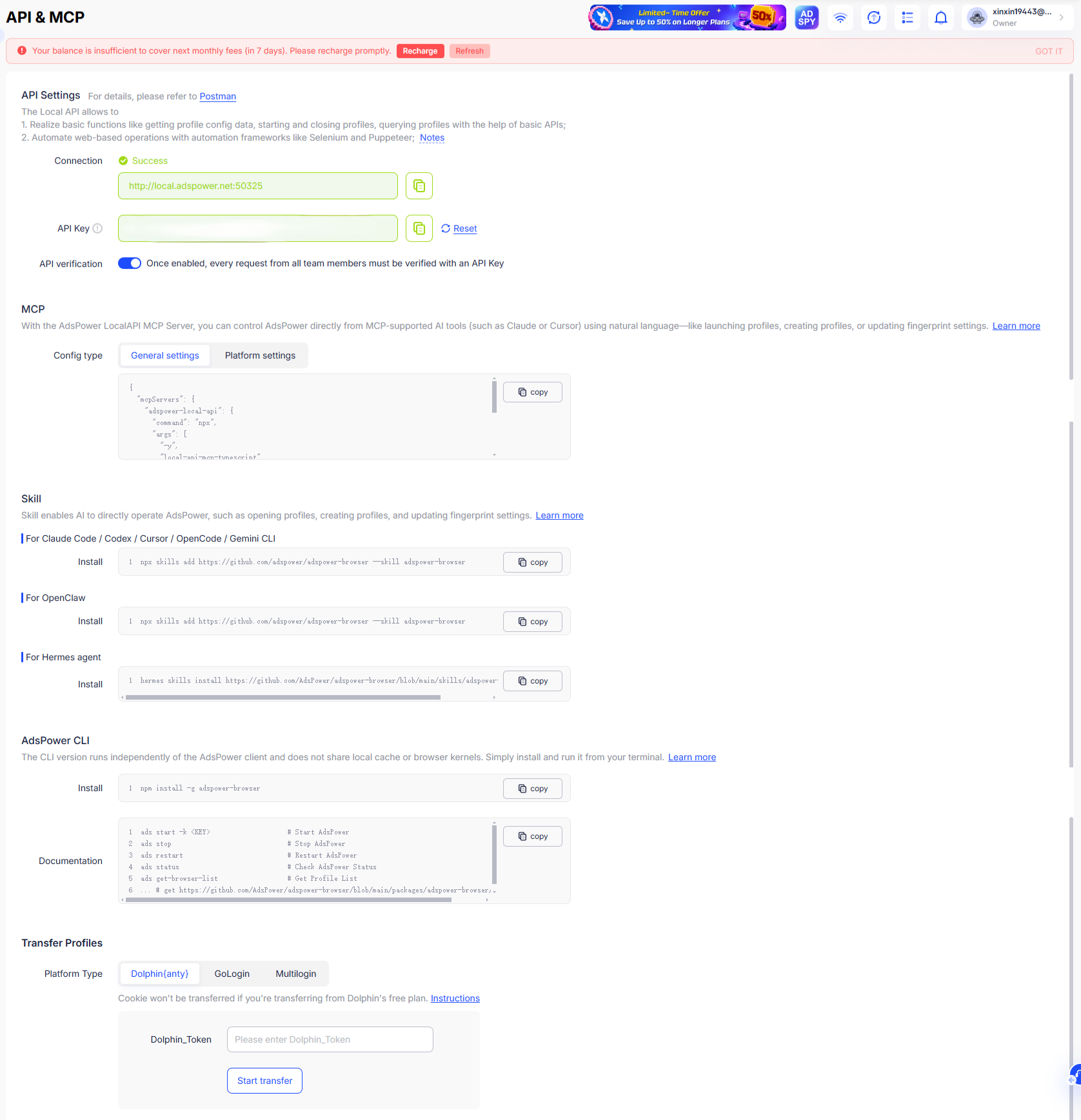
More importantly, it is not necessarily limited to AdsPower's built-in capabilities. The AI Agent can also be extended through MCP and Skills, allowing teams with their own tools, scripts, or automation workflows to explore further integrations.
At that point, AdsPower becomes more than a browser for running multiple accounts. It can gradually become an execution layer within a broader multi-account workflow.
6. MCP and Skills: Extend the Workflow If Your Team Already Has Its Own Toolchain
Another point worth noting is that the AI Agent is not completely closed off.
The original article notes that AdsPower AI Agent supports MCP and Skills, allowing existing team tools and scripts to be connected and called.
This may be more advanced than what an individual user needs.
For businesses that already have a technical team, however, the potential value is clearer.
Businesses rarely rely on just one tool.
If these systems can be connected with AdsPower browser environments, multi-account operations can move beyond simply having people open browsers and perform tasks manually.
Instead, the team can gradually build its own automated workflow.
This is also one of the biggest differences I see between AdsPower and a standard Chrome Profile.
7. Why Do I See AdsPower More as Multi-Account Operations Infrastructure?
When all of these capabilities are viewed together, AdsPower's positioning becomes much clearer.
““Let me stay logged into several accounts at the same time.””
““Let me run multiple mobile apps on my computer.””
““Let me manage a set of independent browser environments for the long term.””
From the network layer to browser fingerprints and account data, and finally to team collaboration and automation.
The overall workflow is fairly comprehensive:
Network configuration → Browser environment → Account data → Team permissions → Operation logs → Automation → AI Agent
That is why the difference between AdsPower and standard Chrome may not be very noticeable when there are only a few accounts.
But once the account count reaches a dozen or several dozen, especially when a team needs to work together, the difference becomes much more noticeable.
The original article also points out that, compared with Chrome profiles and Android emulators, the key distinction of fingerprint browsers is specialization: they do not simply separate windows, but address environment management and operational efficiency across networking, fingerprinting, data, and collaboration.
If I were managing only a small number of accounts, I would not adopt a fingerprint browser solely for the sake of running multiple instances.
But once social media operations become a long-term business and I need to manage a dozen or several dozen accounts, I am more inclined to view AdsPower as dedicated multi-account operations infrastructure rather than simply a browser for running multiple accounts.
7. The Core Advantages of Fingerprint Browsers Go Beyond Account Isolation
Many Chinese-language articles reduce fingerprint browsers to tools for preventing account linkage.
From a practical perspective, I think that interpretation is too narrow.
For me, the real value lies in separating and centrally managing account environments.
The main benefits can be broken down into several areas.
1. Independent Browser Environments
Each account has its own browser configuration.
Cookies, cache, local storage, login sessions, and other data can be stored separately.
This means multiple accounts do not have to share the same browser workspace.
2. Independent Network Configuration
Different accounts can be assigned proxies according to their actual business requirements.
AdsPower supports common proxy protocols such as HTTP, HTTPS, and SOCKS5, and also allows existing proxies to be added.
This creates a clear relationship between accounts and network configurations.
3. Browser Fingerprint Environment Management
Different environments can be configured with parameters such as User-Agent, operating system, browser version, language, time zone, resolution, and fonts, along with options related to fingerprint signals such as Canvas, WebGL, WebRTC, and Audio Context.
One point deserves special emphasis:
A fingerprint browser is not a guaranteed way to prevent account restrictions.
Whether a platform restricts an account can still depend on account behavior, content quality, login activity, identity verification, platform policies, and many other factors.
So I prefer to think of a fingerprint browser as:
a tool that helps me better separate and manage multiple account environments.
rather than something that allows me to bypass every platform rule simply by installing it.

8. Once You Have a Dozen or More Accounts, Management Matters More Than Simply Running Multiple Instances
This is also something I think many people overlook when they first start managing multiple social media accounts.
With three accounts, I barely think about management features.
With a dozen or more, organization starts to matter.
With dozens of accounts, managing everything without a system becomes genuinely difficult.
At that point, I need to know:
Which environment corresponds to which account?
Which platform does each environment belong to?
Which employee is responsible for each account?
Has this environment been modified recently?
How should account handovers be handled?
That is why the value of a professional fingerprint browser goes beyond opening multiple windows and starts to involve genuine multi-account management.
For example, AdsPower supports environment groups and tags, team permissions, operation logs, and automation.
I can organize environments by platform, brand, market, client, or operator.
These features may not seem important at first.
But once the number of accounts grows, you quickly realize:
Keeping everything organized matters more than simply opening more instances.
9. Why Does a Social Media Team Need Environment Management Even More?
When you work alone, many things can be handled informally.
But once you move to a team-based operation, the situation changes.
If everyone uses the same browser and shares account information through spreadsheets, group chats, or messaging tools, management can quickly become disorganized.
A professional account-environment management tool can let each team member operate the appropriate environments according to their permissions.
The AdsPower team features described in the original article—including sub-account permissions, environment groups, and operation records—essentially standardize the process of having multiple people manage multiple accounts.
If I were personally managing three accounts, I would not consider all of this necessary.
But if a team were managing dozens of accounts, these capabilities would become much more important to me.
10. Can AI and Automation Further Improve Multi-Account Efficiency?
As the number of accounts increased, I noticed another obvious problem:
There were simply too many repetitive tasks.
For example, creating browser environments, opening environments, checking proxies, and performing batch operations.
Each individual task may take only a few seconds.
But repeating them across dozens of accounts can add up to a substantial amount of time.
AdsPower provides automation capabilities such as RPA and a local API. The original article also introduces an AI Agent that can assist with tasks such as creating environments, opening environments, logging into platforms, and publishing content.
For me, the biggest value of these features is not 'AI' itself.
whether repetitive work can be delegated to automation.
At larger account volumes, the efficiency gains can become increasingly noticeable.
11. Cloud Phones: A Potentially Better Fit for Mobile-App-Centric Workflows
Now let us turn to cloud phones.
These two solutions are often compared, but I think they address somewhat different needs.
Fingerprint browsers primarily address browser-based account environments.
Cloud phones primarily address the operating environment for mobile apps.
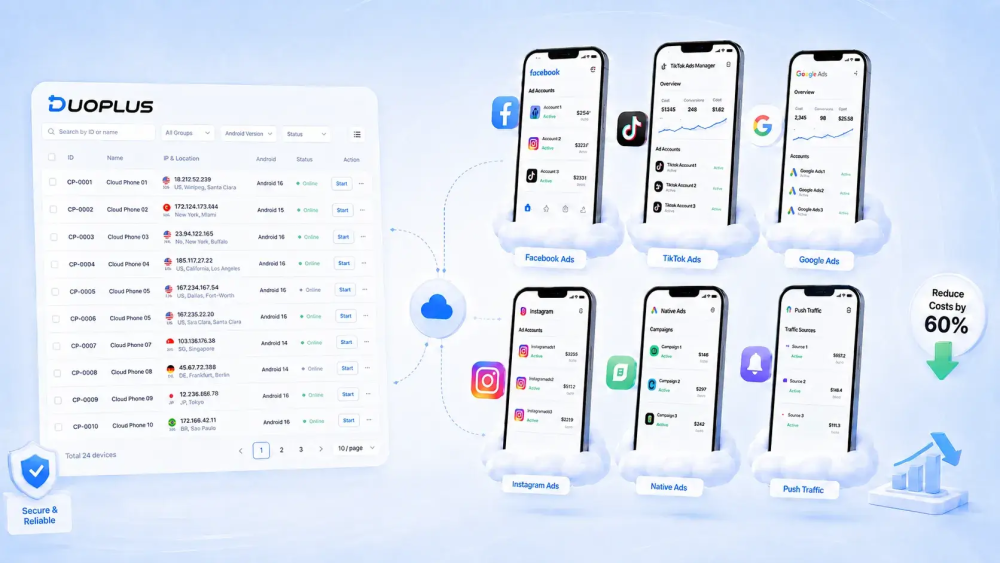
A cloud phone can be thought of as an Android phone running in the cloud.
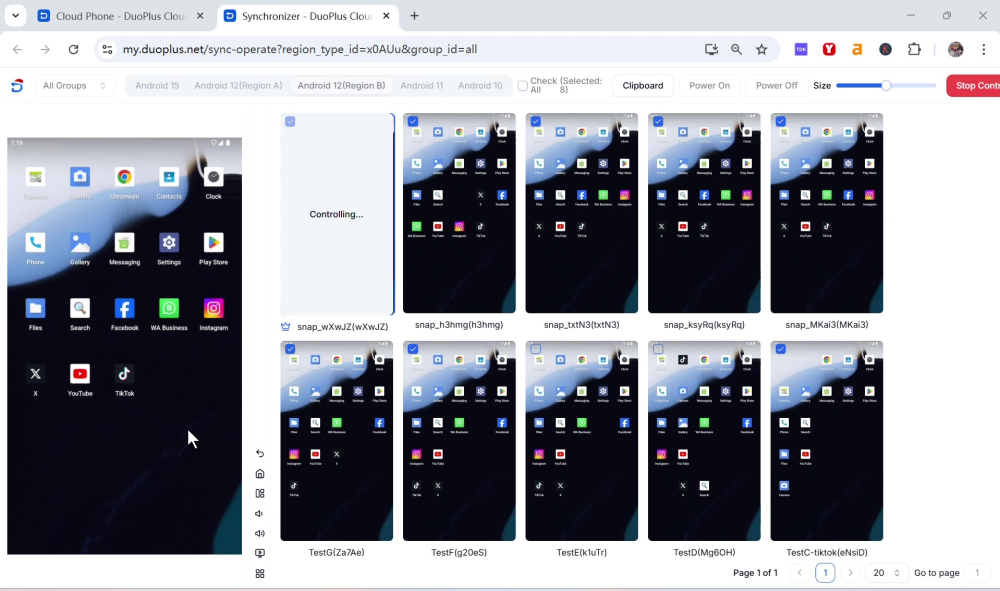
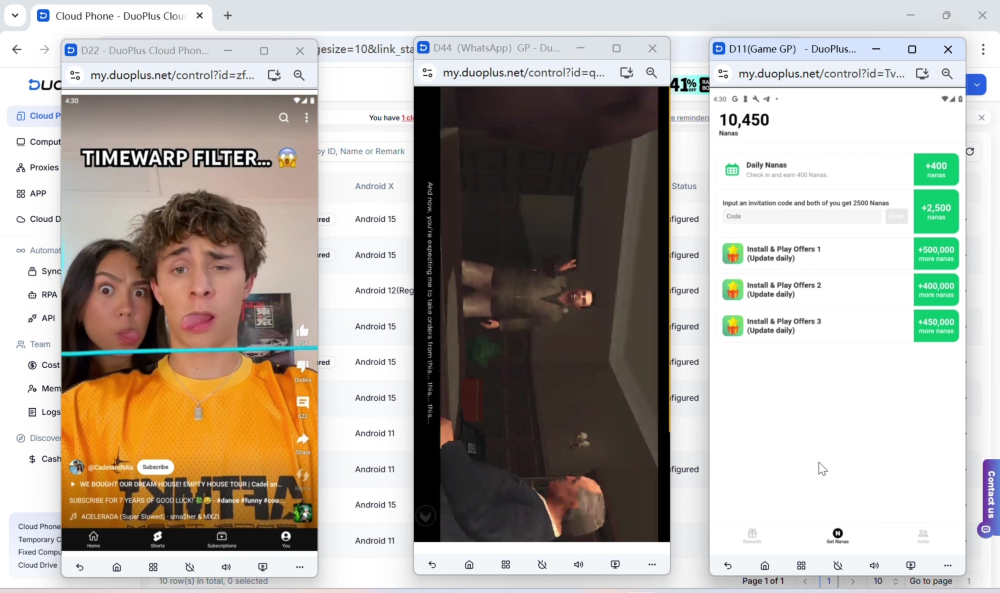
I do not need to purchase dozens of physical phones. Instead, I can remotely access cloud-based Android environments from a computer or another device.
I can then install TikTok, Instagram, Facebook, WhatsApp, and other apps on different cloud phones.
DuoPlus is an example of this type of solution. The original article describes it as an independent cloud-based Android environment suited to mobile-account operations.
12. What Is the Difference Between Cloud Phones and Android Emulators?
This is one of the first questions people often have when they encounter cloud phones.
But the biggest difference is actually where they run:
As a result, the more local emulator instances you run, the more demanding they are on your computer.
Cloud phones move those computing resources to the cloud.
As the number of accounts grows, I can add more cloud phones without necessarily upgrading my computer's CPU, memory, or GPU.
I also avoid having to purchase, charge, store, and maintain large numbers of physical phones.
For operations involving many mobile accounts, this scalability can be useful.
Of course, there is a practical downside:
The cost is usually higher than running local emulators.
So if I only had two or three accounts, I would not choose a cloud phone simply to “look more professional.”
But if I were managing many mobile accounts and expected to scale further, I would seriously consider them.
13. Fingerprint Browser or Cloud Phone: Which Should You Choose?
If I had to reduce the decision to one simple question, I would ask:
Does most of your work happen in a web browser or inside mobile apps?
If your workflow is primarily web-based
then I would consider a fingerprint browser first.
Because the core requirement is:
Multiple independent browser environments.
If your workflow is primarily mobile-app based
and you have a relatively large number of accounts, then I would focus more on cloud phones.
If you need both web and app environments
you do not necessarily have to choose only one.
You can use different solutions for different parts of the workflow.
14. How Should You Choose Among the Four Multi-Account Management Solutions?
If I condense everything above into a practical comparison, I would look at it this way:
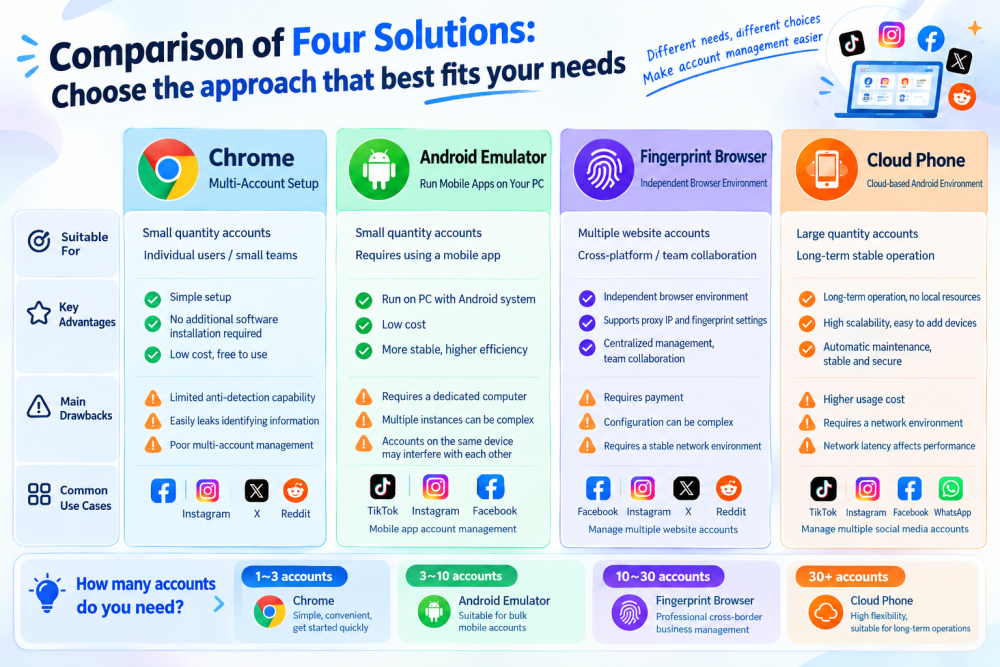
So I would not simply say that a fingerprint browser is the best, or that a cloud phone is the most advanced. Your actual requirements are what matter.
15. Which Solution Fits Different Account Volumes?
If we look at the problem by account volume, the decision becomes relatively straightforward.
1–3 accounts链接
Start with multiple Chrome profiles. There is no need to make things more complicated.
3–10 accounts
If your workflow is mainly web-based, you can continue using Chrome or start considering a fingerprint browser.
If you mainly use mobile apps, an Android emulator is an option.
10–30 accounts
At this stage, professional account-environment management starts to become valuable.
If the workflow is mainly web-based, I would consider a fingerprint browser first.
If the workflow is mainly mobile-app based, cloud phones are worth considering.
30+ accounts
At this point, I would no longer treat simply running multiple instances as the core problem.
The more accounts you manage, the more important it becomes to move from simply running multiple instances to systematic management.
16. What Should You Keep in Mind When Managing Multiple Social Media Accounts?
There is one final point I want to address.
Many articles about multi-account social media management directly associate fingerprint browsers with preventing account bans.
I think this claim should be treated with caution.
Whether you use Chrome, an Android emulator, a fingerprint browser, or a cloud phone, none can guarantee that an account will never be restricted by a platform.
Platform account policies, content rules, login behavior, identity verification, network environment, and other risk signals can all affect account status.
In practice, I would recommend using these tools primarily for:
Account environment management
Improving operational efficiency
Reducing accidental actions across accounts
rather than viewing them as a way to bypass platform rules.
Ultimately, these tools address technical and management challenges. Whether an account can operate sustainably still depends on content quality, user behavior, and compliance with platform rules.
17. My Final Take: There Is No One-Size-Fits-All Solution
If I were making the decision again, this is how I would approach it.
Small number of social media accounts: Multiple Chrome profiles are enough.
They are simple, inexpensive, and require little learning.
Small number of mobile accounts: An Android emulator is practical.
Especially if you already have a reasonably powerful computer, it is a sensible place to start.
Large number of web-based accounts: A fingerprint browser is a more suitable option.
At this point, you need more than multiple instances—you need independent browser environments, network configuration, account-data management, and team collaboration.
Large number of mobile accounts: Cloud phones are worth considering.
Especially when the workflow depends heavily on mobile apps and the account count is expected to continue growing.
If I had to summarize it in one sentence:
When you have a few accounts, the challenge is how to run them side by side; when you have many, the challenge is how to manage them systematically.
That is probably the biggest lesson I have taken away from managing multiple social media accounts in practice.
The right solution is not necessarily the one with the most features or the highest price. It is the one that matches your current account volume, platform types, and workflow without quickly becoming a bottleneck as you scale.
FAQ: Frequently Asked Questions About Multi-Account Social Media Management
Can I log into multiple social media accounts at the same time?
Yes. Depending on the platform and use case, multiple accounts can be managed through Chrome user profiles, Android emulators, fingerprint browsers, or cloud phones.
Can one computer manage multiple Facebook, Instagram, or TikTok accounts?
Yes, but the appropriate solution depends on whether you primarily use the web or mobile apps.
For web-based accounts, you can consider multiple Chrome profiles or a fingerprint browser. If you primarily rely on mobile apps, an Android emulator or cloud phone may be more suitable.
What Is the Difference Between Chrome Profiles and Fingerprint Browsers?
Multiple Chrome profiles mainly use separate user profiles to preserve different account login sessions.
A fingerprint browser goes further by creating separate browser environments for different accounts and providing more comprehensive account, network, and environment management.
What Is a Fingerprint Browser?
A fingerprint browser is a type of tool used to create and manage multiple independent browser environments.
Different environments can separately store cookies, cache, local storage, browser settings, and other environment parameters.
Can a Fingerprint Browser Prevent Account Bans?
Fingerprint browsers primarily address multi-account environment separation and management. They cannot guarantee that an account will not be restricted because of its content, behavior, identity verification, or violations of platform policies.
Are Cloud Phones Suitable for Managing Multiple TikTok Accounts?
If your TikTok workflow relies heavily on the mobile app and you need to manage multiple mobile environments, a cloud phone can be one option.
If most of your work takes place on the web, a browser-environment solution may be more convenient.
Android Emulator vs. Cloud Phone: Which Should You Use?
For a small number of accounts where keeping costs down is a priority, an Android emulator may be a practical starting point.
For a larger number of accounts where remote access and scalable mobile environments are important, a cloud phone can be considered.

0 条评论